
Getting started
Find your way around the Penge app
Penge has four tabs and no menu. Once you know what sits behind each one, and which screen a number came from, the rest of the app is the same few gestures.
What is on each tab?
Overview is the front page: what you have spent this month, your budgets, your subscriptions and the Insights cards. Transactions is the full list, with search and filter chips. Statistics breaks one period down by category group, category or tag. Settings holds your banks, accounts, file imports and preferences.
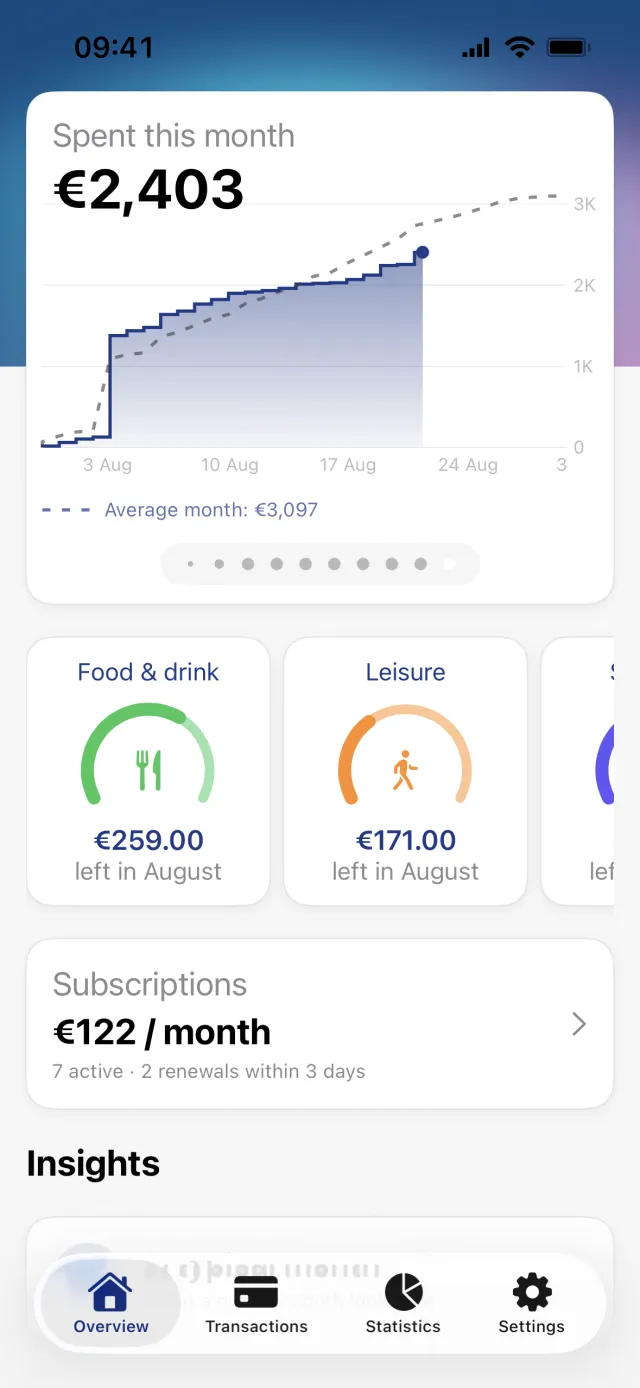
The four tabs
| Tab | What lives there |
|---|---|
| Overview | Spent this month with a day-by-day chart you can swipe between months, budgets, subscriptions, and the Insights cards, including A typical month. |
| Transactions | Every transaction, newest first, grouped by day. Search, filter chips, swipe to categorize, and the banner counting your uncategorized transactions. |
| Statistics | One month or one year at a time, split by Category Groups, Categories or Tags, with money in and money out at the top. |
| Settings | Banks and accounts, Categories, Tags, Categorization Rules, Subscriptions, File import, Widgets, Preferences, and Sign out at the bottom. |
Overview cards or the Statistics tab?
Two cards on Overview look like statistics and are not. Monthly summary steps through completed months with arrows and compares each one with the month before. Year in review does the same for a year, except that it starts on the year you are in and only compares with the year before once you step back to a finished one. Both show Incomes, Expenses and Total, and each row opens the transactions behind it.
The Statistics tab is the one with settings. It opens on the current month, and the sliders button in the top right holds toggles that change what the numbers mean: Apply modifiers and Show percentage are on, Show excluded categories is off. The two Overview cards follow none of them. They always use modified amounts and always leave excluded categories out.
A first pass through the app
- Open Overview and swipe the top card sideways to compare the last few months of spending.
- Go to Transactions and tap the banner counting your uncategorized transactions. Working through those is what makes every other screen worth reading.
- Open Statistics and tap a bar to switch period. Tap the same bar again to clear it and see all-time totals.
- Tap a row in the breakdown to see the transactions behind the number.
- Open Settings, then Banks and accounts, and check that every account you expect is there.
Good to know
- Monthly summary never shows the current month. It only steps through months that have finished.
- The filter chips are shared between Transactions and Statistics. Setting a filter on one changes the other, and clearing it in either place clears it in both.
- Filters are not remembered. They survive a tab switch and disappear when the app is closed.
- There is no accounts tab. Banks, accounts and balances live in Settings, under Banks and accounts.
- The number badge on Settings counts bank accounts that have lost their connection. It is not unread anything.
- A typical month sits on Overview under Insights and averages the last four completed months that have transactions. The card stays hidden until one month has finished.
Get a full overview with Penge
Connect your bank and let the app categorize and budget automatically.
Questions about this
- Why is this month missing from Monthly summary?
- That card only shows completed months, so the current one appears once it ends. What you have spent so far this month is on the card at the top of Overview, and on Statistics, which opens on the current month.
- Why do Statistics and the Overview cards disagree?
- The Statistics tab has toggles and the Overview cards ignore them. If Show excluded categories is on, Statistics counts categories that the Overview cards always leave out, so the totals part ways.
- Where is the search?
- On the Transactions tab only. It matches the description, the note and the amount. It does not search category, tag, account or file names, which is what the filter chips are for.
- How do I get to my balances?
- Settings, then Banks and accounts. The combined total sits at the top, and each bank opens on its own accounts. Tapping the Balance widget on your home screen goes to the same list.