
How to see your spending without opening the app

Co-founder of Penge · Published 12 September 2026 · 6 min read
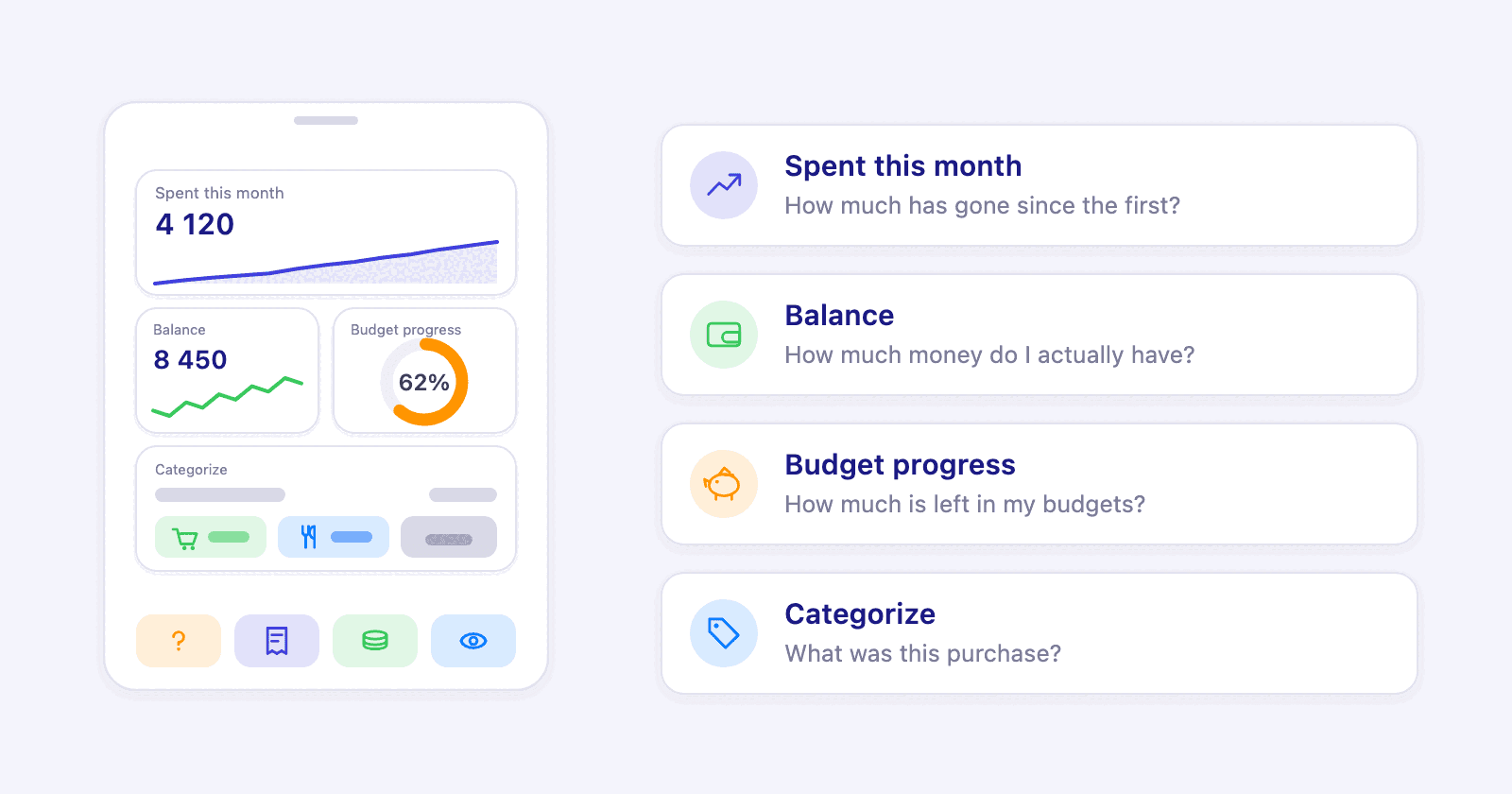
Most money questions take two seconds to answer and half a minute of tapping to reach. A widget removes the tapping. Penge has eight of them for the Home Screen, six of which also fit the Lock Screen, plus four controls.
Key takeaways
- Penge has eight Home Screen widgets, and six of them also fit the Lock Screen.
- Six of the eight can be edited after you place them, so a widget follows the accounts, the budgets or the month you care about.
- Categorize is the one widget you can act in: tap a suggested category and the transaction is filed, or skip it for later.
- Four controls go in Control Center, in a Lock Screen slot or on the Action button: Categorize, Add transaction, Balance and Hide amounts.
- Widgets read a snapshot Penge writes whenever your transactions change, so the numbers stay there with the app closed.
How do I see my spending without opening the app?
Put a Penge widget on your Home Screen. Touch and hold an empty spot, tap Edit, then Add Widget, and search for Penge. Pick the one that answers the question you keep opening the app for: what you have spent this month, what is left of a budget, or what your balance is right now.
A budgeting app has one problem that has nothing to do with budgeting: you have to open it. Most of the time the question is small. Can I afford this. How much is left in food this month. Did that card payment land. Opening an app, waiting for a sync and finding the right screen is a lot of work for a two second answer, and after a few weeks people stop asking.
A widget turns those questions into a glance. The number is on the screen you already look at forty times a day, so you see it whether you meant to check or not, and that is most of the value. Nothing else about the app changes: the widget is a window onto the same figures.
Which widget answers which question?
Each of the eight is built around a single question. Balance answers what you have, Spent This Month answers what has gone, Budget Progress answers what is left, Spending Pace answers how fast, and Categorize answers what a purchase was. Pick by the question you ask most, not by how the widget looks.
| Widget | The question it answers | Sizes |
|---|---|---|
| Categorize | What was this purchase, and can I file it now? | Small, medium, large. Also Lock Screen |
| Balance | How much money do I actually have? | Small, medium. Also Lock Screen |
| Spent This Month | How much has gone since the first? | Small, medium. Also Lock Screen |
| Budget Progress | How much is left in my budgets? | Small, medium. Also Lock Screen |
| Spending Pace | Am I spending faster than a normal month? | Small. Also Lock Screen |
| Top Categories | Where is the money going this month? | Small, medium |
| Monthly Summary | Did last month end in plus or minus? | Small, medium |
| Uncategorized Transactions | How many transactions are waiting for me? | Small. Also Lock Screen |
Two widgets is usually the right number. One for the question you ask daily and one for the question you keep forgetting to ask. Eight of them on one page is a dashboard nobody reads.
Where does each widget earn its place?
Balance is the one most people place first. The small size shows your total across every account with a line for the last 30 days. The medium size adds your accounts by name with their own balances, up to four of them. A bank connection lasts 90 days before it has to be renewed, and when one has dropped out the widget says how many accounts need reconnecting instead of quietly showing a total that is missing a bank.
Spent This Month draws the month as a running total, so the shape says as much as the number. A dashed line follows your average month, which makes an expensive week obvious around the 12th rather than on the last day. Budget Progress is a ring per budget, one at the small size and three at the medium size, and it turns red once a budget is used up.
Spending Pace asks a different question from the rest: not how much, but how fast. It turns the month so far into an amount per day and says how far above or below your usual that is. It is the widget that catches an expensive month while there is still time to do something about it.
Top Categories and Monthly Summary are for looking back. Top Categories ranks this month by category with each one's share of the total. Monthly Summary shows income, expenses and the difference for your last complete month, next to the month before it. Uncategorized Transactions is a plain counter of how many transactions are waiting, with a green seal when there are none.
Can I do anything from a widget, or only look?
One of them takes action. The Categorize widget shows the next transaction without a category and up to three categories suggested from your own history, as buttons. Tapping one files the transaction and the next one takes its place. The small size fits one suggestion, the medium two, the large all three plus a skip.
Your taps are saved and applied the next time you open Penge, because a widget cannot reach the app's database on its own. The widget hides what you have already handled, so the next transaction slides in and you never see the same one twice. Skip moves past one you are not ready to decide on, and it comes back later rather than disappearing.
This is the widget that pays for itself, because a backlog of uncategorized transactions is what makes people abandon a budgeting app. Suggestions come from your own history, and automatic categorization can apply the confident ones for you, so the widget is left with the genuinely ambiguous ones.
What can I change after placing a widget?
Touch and hold a placed widget and choose Edit Widget. Six of the eight have something to change there, and the choice is saved to that copy of the widget, so you can place the same one twice with different settings.
- Balance: pick the accounts to add up, or leave it empty for the total across every account.
- Budget Progress: pick the budgets and the order they appear in, or leave it empty and whichever are closest to their limit lead. Show what is left or what has gone.
- Spent This Month: compare with your average month, with last month, or with nothing.
- Top Categories: this month or last month, and leave out categories that would otherwise dominate the list.
- Spending Pace: set a monthly target to measure against instead of your average month.
- Categorize: start with the newest transactions or the oldest.
Monthly Summary and Uncategorized Transactions have nothing to configure, because there is only one thing each of them could show. Two copies of Budget Progress is a common set-up: one following the food budget, one following everything else.
What do the controls add on the Lock Screen and the Action button?
Four controls, which iOS lets you put in Control Center, in a Lock Screen slot, or on the Action button. Categorize shows how many transactions are waiting and opens them. Add transaction opens Penge ready for a cash purchase. Balance shows your total. Hide amounts masks every figure in one tap.
Controls are smaller than widgets and they sit somewhere you can reach without leaving what you are doing. Swipe down from the top right corner, touch and hold, then tap Add a Control to put one in Control Center.[1] The same four can fill a Lock Screen slot, and on a model that has an Action button they can be assigned to it under Settings.[2]
Hide amounts is the one worth knowing about even if you skip the rest. It masks every amount in the app and on your Home Screen at once, so nothing is readable over your shoulder on the bus, and one tap brings the figures back.
How do I add one?
- Touch and hold an empty spot on your Home Screen until the apps jiggle.
- Tap Edit, then Add Widget, and search for Penge.
- Pick a widget, swipe through the sizes, and tap Add Widget.
- Touch and hold the placed widget and choose Edit Widget to change what it shows.
Apple's own guide covers the same steps for any app, including how to remove a widget again and how to stack several in one spot.[3] Inside Penge, Settings and then Widgets shows all eight rendered with your own numbers, so you can see what a widget will look like before you go and place it.
Good to know
- A widget showing a dash has no figures for the current month yet.
- Taps in the Categorize widget are applied the next time you open Penge.
- Hide amounts masks the figures in the app and in every widget at the same time.
Do widgets work with the app closed?
Yes. Penge writes a snapshot of your figures whenever your transactions change, and the widgets read that snapshot rather than the app. iOS refreshes them at least every half hour and always when a new day starts, so a widget is never showing yesterday's month.
That is also why the widgets are worth setting up early rather than as a finishing touch. They are the part of Penge you see without deciding to, which is exactly what a monthly money review is trying to build a habit around. Penge runs on iPhone, connects to more than 2300 banks in over 30 countries, and the bank connection is read-only.
Sources
Get a full overview with Penge
Connect your bank and let the app categorize and budget automatically.
Frequently asked questions
- How many widgets does Penge have?
- Eight for the Home Screen, six of which also fit the Lock Screen, plus four controls for Control Center, the Lock Screen and the Action button.
- Can I categorize a transaction from a widget?
- Yes. The Categorize widget shows the next transaction without a category and up to three suggested categories as buttons. Tapping one files it, and the choice is applied the next time you open the app.
- Do budgeting widgets work without opening the app?
- They do. The app writes a snapshot of your figures whenever your transactions change, and the widget reads that, so the numbers are there whether or not the app has been opened today.
- Can I hide the amounts on my Home Screen?
- Yes. Penge has a Hide amounts control that masks every amount in the app and in your widgets at once, so nothing is readable from a glance at your Home Screen.
- Can I choose which budget a widget shows?
- Yes. Touch and hold the widget, choose Edit Widget, and pick the budgets and the order they appear in. Left empty, the widget follows whichever budgets are closest to their limit.