
One receipt, two categories: how to split a transaction

Co-founder of Penge · Published 30 August 2026 · 5 min read
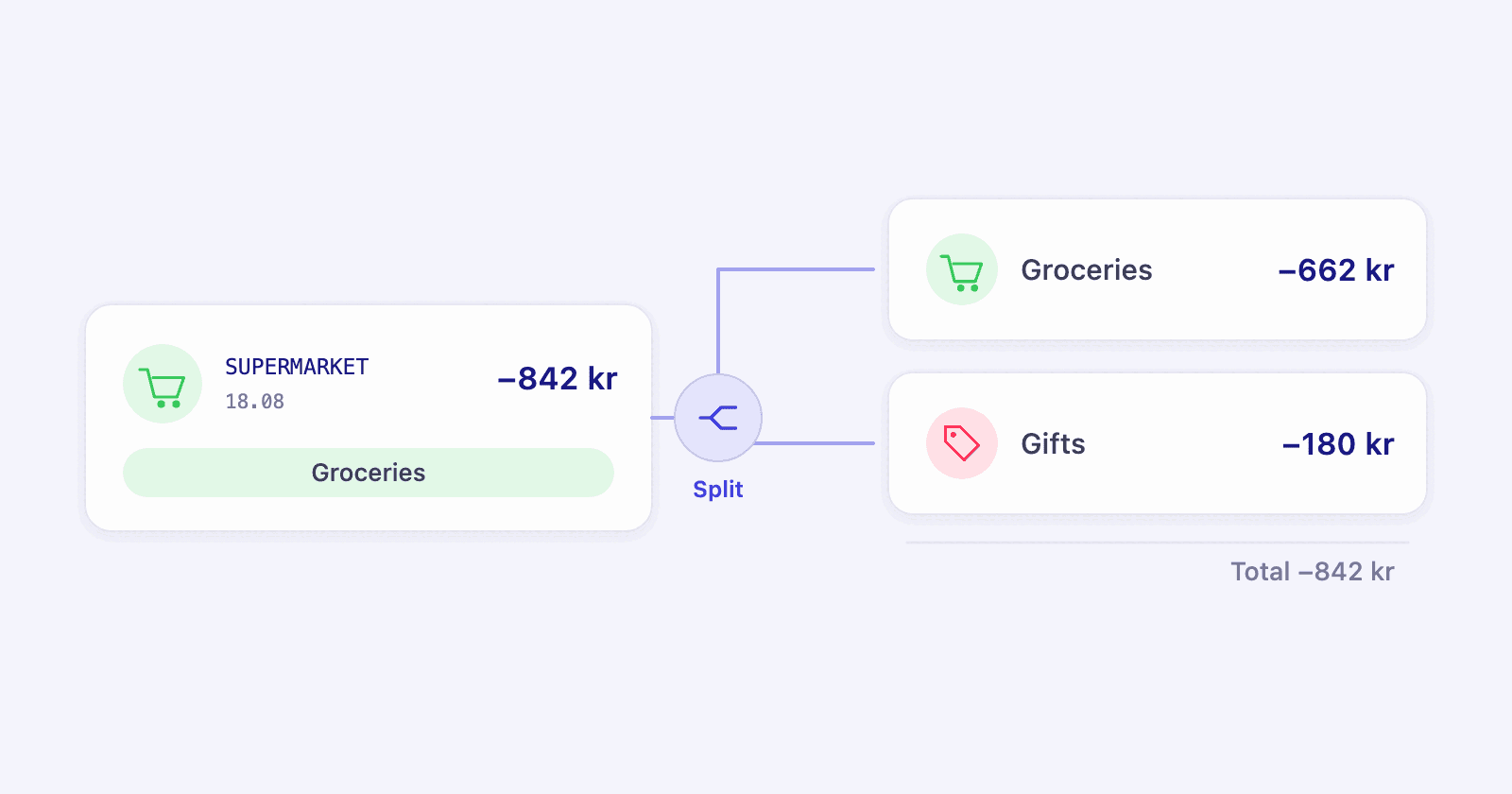
Most months have a few payments that were really two purchases. One shop was food and a birthday present. One hardware run was half a repair and half a houseplant. Splitting turns that single line into the parts it was actually made of.
Key takeaways
- A split divides one payment into parts that each carry their own category. Nothing changes in your bank, and the sum stays the same.
- The parts always add up to the original amount. The first part is recalculated as whatever is left, so a split can never disagree with the payment.
- Every part needs a category before Save turns on. New parts inherit the date, description, account, note and tags of the original.
- In the transaction list the parts stay together under a Split heading with the full total, so the month still reads as one shop.
- Split when one payment covered two different things. Use a smart tag or a statistics modifier when the whole payment was only partly yours.
How do you categorize a purchase that was two different things?
Split it. Open the transaction, tap Split transaction, and add one part for each category. Type the amount of every part except the first, which is worked out as the remainder, then give each part a category. After you save, every part counts in its own category for that month.
The classic case is the supermarket run. You went for food, you also picked up a birthday present, and one card payment covered both. Without a split you have to pick a winner. File the whole 842 kr under Groceries and your food spending looks worse than it was. File it under Gifts and a normal weekly shop disappears from the category you actually watch.
Neither answer is true, and the cost of the small lie is that you stop trusting the numbers. A split is the honest option, and it takes about twenty seconds.
What a split does to your month
Splitting moves money between categories. It never creates or removes any. Here is the same shop, before and after:
| Category | Without a split | After a split |
|---|---|---|
| Groceries | 842 kr | 662 kr |
| Gifts | 0 kr | 180 kr |
| Total spent | 842 kr | 842 kr |
The bottom line is identical, which is the point. What changes is that both categories now tell the truth, and a budget for gifts starts working, because gifts land in Gifts instead of hiding inside the food shop.
How splitting works in Penge
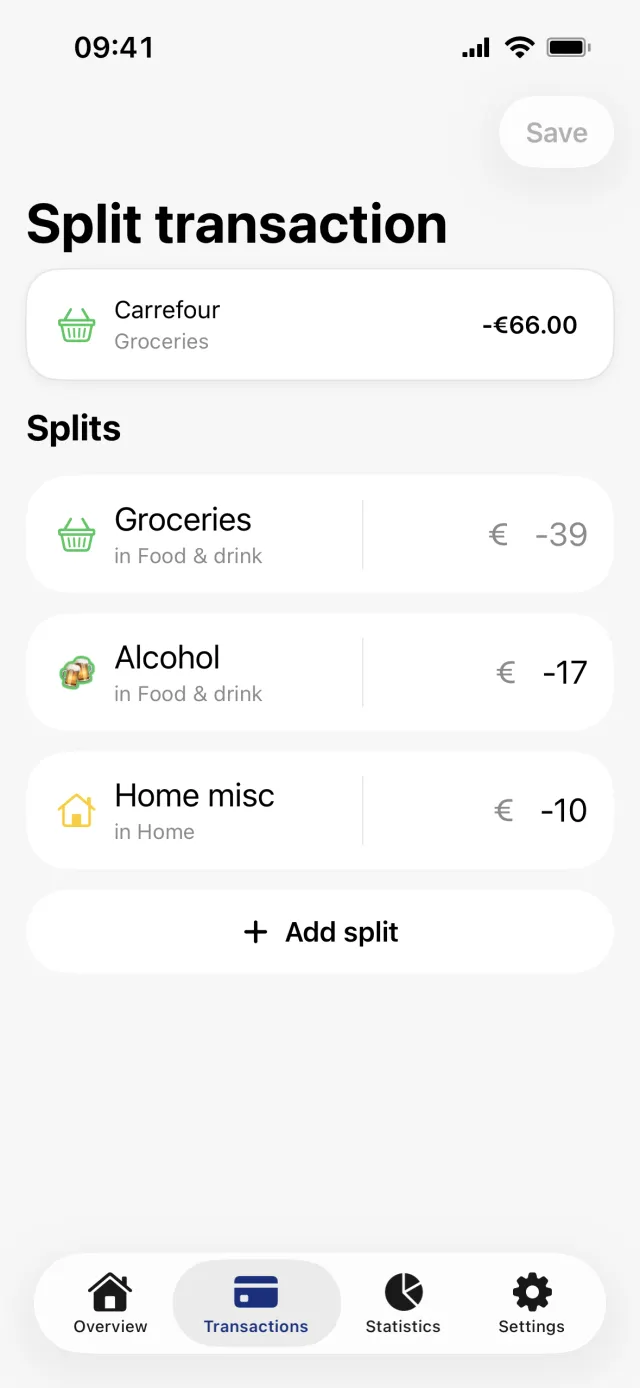
Open a transaction, scroll to the Splits section and tap Split transaction. Tap Add split for each extra part, type its amount, and pick a category for every part. The first part shrinks as you fill in the others. Save is grey until every part has a category.
Good to know
- The first part's amount cannot be typed. It is the total minus everything else, so the parts always sum to the payment.
- Above the keyboard, the shortcuts 1/2, 1/3, 1/4 and 1/5 fill in that share of the total, which is most of what a two-way split needs.
- New parts inherit the description, date, account, note, tags and any spread range of the original.
- Editing the split again resets each part's description and note to the original's, so use tags for anything on a part you want to keep.
- A transaction that belongs to a split cannot be deleted. Remove the extra parts first.
- Splitting needs a connection, because the parts are written on the server rather than queued on the phone.
Paid in another currency? The editor asks for the amounts in that currency and works out the account-currency figures itself, rounding so the parts still add up to exactly what left your account. The step by step version, with every button named, is in Split a transaction across categories.
Can you undo a split?
Yes. Open any part, reopen the split editor, swipe the extra parts away, and save when one part is left. It becomes a single transaction again with its full original amount. It keeps the category of the part that was left, not the one it had before you split it.
The same editor is where you change a split you are not happy with. Amounts and categories can be moved around as often as you like, and the first part absorbs whatever you change on the others.
Split, smart tag, or statistics modifier?
A split is for one payment that covered two different things. A smart tag and a statistics modifier are for a payment that was only partly yours: both cut the amount that counts, by a percentage you choose, and leave the category alone. They solve neighbouring problems, so it is worth knowing which one you need.
| Tool | What it does | Reach for it when |
|---|---|---|
| Split | Divides one payment into parts, each with its own category. The total is unchanged. | One payment covered two or three different things. |
| Smart tag | A tag with a percentage on it. Only that share of a tagged transaction counts in the statistics. | Some payments were shared, and you want to count your half of the ones you tag. |
| Statistics modifier | A percentage on a whole bank account. Only that share of every amount on the account counts in the statistics. | A joint account where roughly everything should count half. |
A split keeps every krone in the month and moves it between categories. A modifier does the opposite: it leaves the category alone and takes part of the amount out of the statistics. On the statistics screen you can switch modifiers off with the Apply modifiers toggle, which is a quick way to see the full amounts again.
The two can be combined, and often should be. A joint account carrying a 50% modifier still benefits from a split when one shop was food and a gift, because the split fixes which categories the money belongs to and the modifier fixes how much of it is yours.
When is a split worth twenty seconds?
Not every mixed payment deserves one. A split is worth it when the smaller part is big enough to move a category you actually look at, or when it belongs to a category you are budgeting for.
- Worth it: the weekly shop that included a 180 kr present, the hardware run that was half a repair, the restaurant bill you paid for the table.
- Worth it: anything you would otherwise have to remember when you read the month, because you will not remember it.
- Skip it: a 25 kr chocolate bar inside a 900 kr shop. It will not move a category, and a month full of tiny splits is a month you stop maintaining.
- Skip it: costs that are really one purchase spread over time. Those belong to a spread range, not to a split.
Does splitting confuse the automatic categorization?
No. Inside the split editor you get the same category suggestions the app had for the payment, one tap per part. A categorization rule only sets a category on transactions that have none, and every part of a split has one, so a rule cannot overwrite what you decided.
Penge runs on iPhone, connects to more than 2300 banks in over 30 countries, and suggests categories from your own history. Splitting is the manual override for the payments no automation can get right, because only you know that 180 kr of the shop was a present.
Get a full overview with Penge
Connect your bank and let the app categorize and budget automatically.
Frequently asked questions
- Do the parts of a split have to add up to the original amount?
- They always do. The first part is recalculated as the total minus everything else, so you only type the parts you add. There is no way to save a split that disagrees with the payment.
- Can each part of a split have its own category?
- Yes, and it must. Save stays off until every part has a category, since a part with no category would leave money uncategorized for that month.
- Does splitting a transaction change anything in my bank?
- No. Penge only reads from your bank, so a split exists in the app alone. Your statement still shows one payment for the full amount.
- What is the difference between a split and a smart tag?
- A split divides one payment into parts with different categories and keeps the total. A smart tag keeps one category and counts only a percentage of the amount, which is what you want for a payment that was only partly yours.