
Transactions
Split a transaction across categories
A single payment often covers more than one thing. Splitting divides one transaction into parts that each carry their own category, so your statistics stop filing a whole hardware store run under Home.
How do you split a transaction?
Open the transaction and tap Split transaction. Add a part for each category, type the amount of every part except the first, and give each one a category. The first part is always the remainder, and Save stays grey until every part has a category.
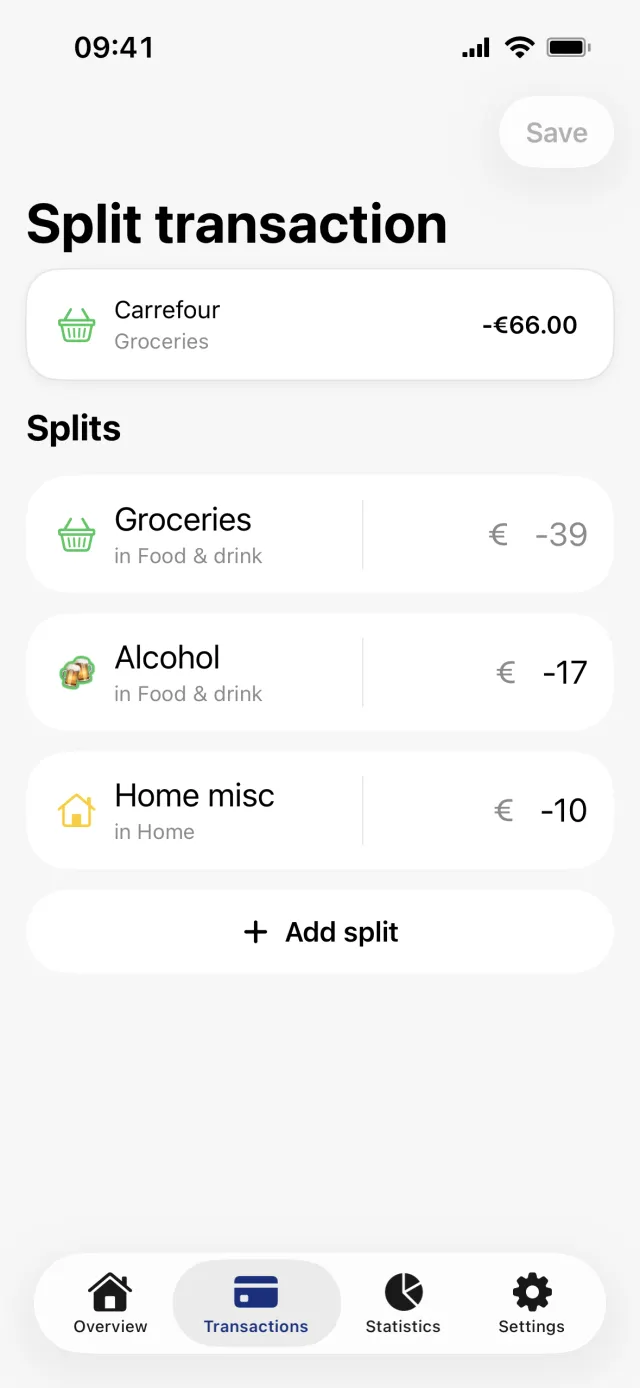
Split a payment step by step
- Open the Transactions tab and tap the transaction you want to split.
- Scroll to the Splits section and tap Split transaction. The same action sits under Edit in the top right, where it reads Split the transaction.
- The editor is titled Split transaction. The original is the card at the top, and the parts are listed under Splits.
- Tap Add split once for each extra part you need.
- Type the amount of the part you added. Above the keyboard, under Shortcuts, the buttons 1/2, 1/3, 1/4 and 1/5 fill in that share of the total.
- Tap the category card on every part and pick a category.
- Tap Save in the top right.
Good to know
- The first part's amount cannot be typed. It is recalculated as the total minus everything else, so you only enter the parts you add.
- Save stays grey until every part has a category, and also while nothing has changed or you are offline.
- New parts copy the original's description, date, account, note, tags and any spread range. Later changes to the original are not copied.
- In the list the parts sit together under a Split heading with a Total: figure. That total covers the whole split, even when a filter hides some of the parts.
- A transaction that belongs to a split cannot be deleted. Remove the extra parts first.
- When the payment was made in a foreign currency, the editor asks for the foreign amounts instead and works out the account-currency figures itself.
Change or undo a split
- Open any part of the split. The Splits section lists every part, with the one you are on at full strength and the others dimmed. Tap one to jump to it.
- Tap Edit transaction splits to reopen the editor.
- Swipe an extra part to the left and tap Delete. The first part cannot be swiped away.
- Delete parts until only one is left, then tap Save. It becomes a single transaction again with its full original amount.
Un-splitting keeps the category of the part that was left. The category the transaction had before you split it does not come back, so set it again if you need to.
Get a full overview with Penge
Connect your bank and let the app categorize and budget automatically.
Questions about this
- Can I split a payment into more than two parts?
- Yes. Tap Add split as many times as you need. Only the first part's amount is fixed, and it shrinks as you fill in the others.
- Why is Save greyed out?
- Almost always because one part has no category yet. Save also stays off when nothing has changed since you opened the editor, and when the device is offline.
- Do the parts have to add up to the original amount?
- They always do. The first part is recalculated as whatever is left, so entering more than the total pushes the first part past zero rather than letting the split disagree with the payment.
- Can I spread one part of a split over several months?
- You can, but saving the split again copies the first part's month range onto every part and overwrites what you set. [Spread a cost over several months](/help/spread-a-cost-over-months) explains the range.