
Categories, rules and tags
How to categorize your transactions
Statistics and budgets only mean something once your transactions carry categories. Penge works out a suggestion for every new transaction, and you accept it, change it, or set your own.
How do you categorize a transaction?
Swipe a transaction to the right and tap Add category, or open it and tap the card under Category. Both open the Select category screen, where tapping a category applies it. The same swipe also offers up to two suggested categories, so one tap is often the whole job.
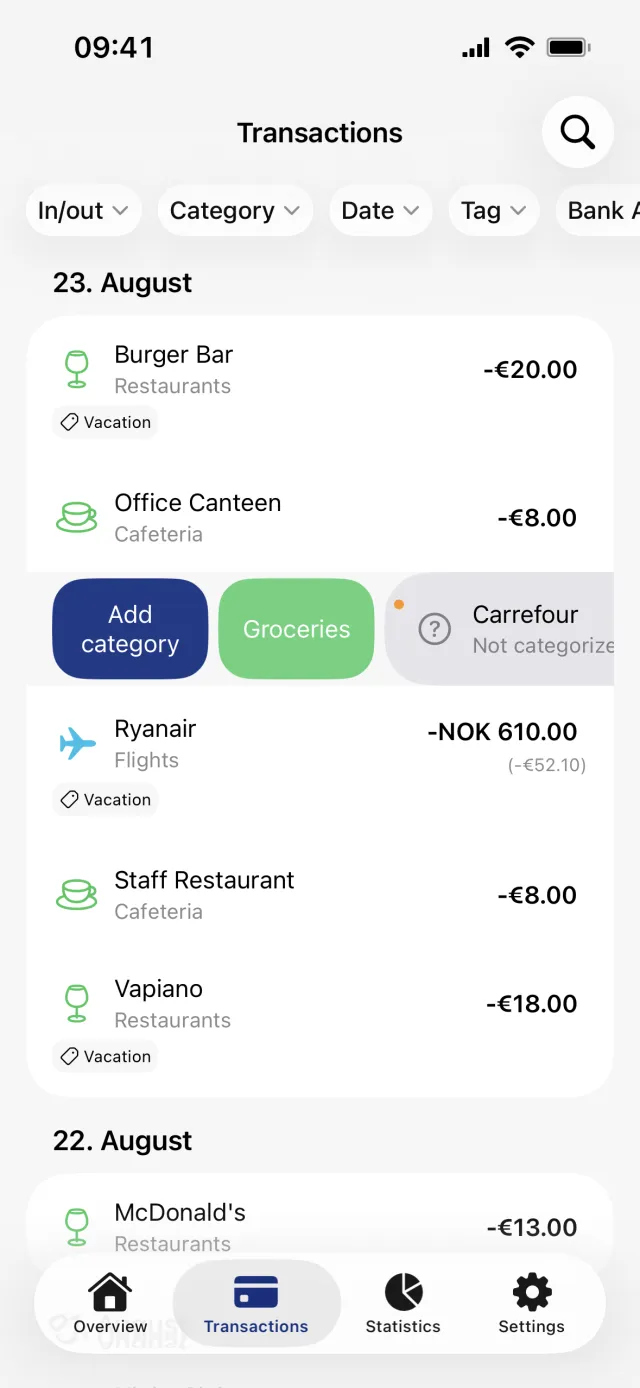
Categorize one transaction
- Open the Transactions tab.
- Swipe the row to the right and tap Add category. Or tap the transaction and tap the card under the Category heading.
- On the Select category screen, tap the category you want. Penge saves it and takes you back.
- To take a category off again, return to the same screen and tap the category that is already ticked. There is no separate remove button.
Where the suggestions come from
Penge works out suggestions on its own, from how you have categorized the same text before. Up to two of them sit in the right swipe, tinted with their group colour, and the full list sits under Suggestions at the top of the Select category screen.
Suggestions are worked out shortly after the transactions arrive, so a fresh row can show up before its suggestions do.
Good to know
- Setting a category needs a connection. The swipe buttons grey out when you are offline and nothing is saved.
- Reserved transactions cannot be categorized. Wait until the bank books them.
- After you categorize one transaction, Penge may ask Categorize similar transactions? Nothing is ticked to begin with, and it is a one-off tidy-up of what you already have. To cover what arrives later, use a categorization rule.
Categorize several at once
- Press and hold a transaction row for about half a second.
- Tap the other rows you want to include.
- Tap Categorize in the bar along the bottom.
- On the Categorize N selected screen, tap a category.
Good to know
- A tick next to a category means every selected transaction already has it. Tapping it again takes the category off all of them.
- You cannot create a new category from inside this flow, and the similar-transactions question never follows it.
Let Penge handle the ones it is sure about
- Open the Settings tab and tap Preferences.
- Scroll to the Automatic categorization section.
- Turn on Automatically categorize confident transactions.
- If a sheet called Categorize these transactions? appears, untick anything you disagree with, leave Keep categorizing automatically on, and tap Apply.
Good to know
- The setting is off until you turn it on.
- When that review sheet appears, the setting is only saved if you tap Apply with Keep categorizing automatically still on. Tapping Not now changes nothing. Turning that switch off and tapping Apply still categorizes the ticked transactions, but leaves the setting off and the toggle springs back.
- It only ever fills an empty category. It never overwrites one you set, and it leaves transfers between your own accounts alone.
- AI suggestions are a separate setting in the same screen, under AI suggestions, and are also off until you turn them on. Turning them on opens a consent sheet naming what is shared and who it goes to.
Get a full overview with Penge
Connect your bank and let the app categorize and budget automatically.
Questions about this
- Why does one transaction have no suggestions at all?
- Either a categorization rule already claimed it, in which case Penge skips suggestions for that transaction, or your history has nothing to go on yet. Suggestions get better as you categorize more.
- Does categorizing one transaction affect the ones that come later?
- No. The similar-transactions sheet only tidies up what you already have. A categorization rule or a subscription is what covers transactions that have not arrived yet.
- Can I categorize without a connection?
- No. Every change goes to the server, so the buttons are disabled offline and nothing is queued up for later.