
Categories, rules and tags
Categorization rules: decide a shop once
A rule is a keyword and a category. Every new transaction whose text contains the keyword is categorized before you ever look at it, so a shop you visit every week only needs deciding once.
How do you make a rule?
Open the Settings tab, tap Categorization Rules, then the plus, then Add manually. Type the keyword under Match keyword, pick a Category, and tap Save. If uncategorized transactions you already have match it, Penge asks first, with every match ticked, and nothing changes until you tap Apply.
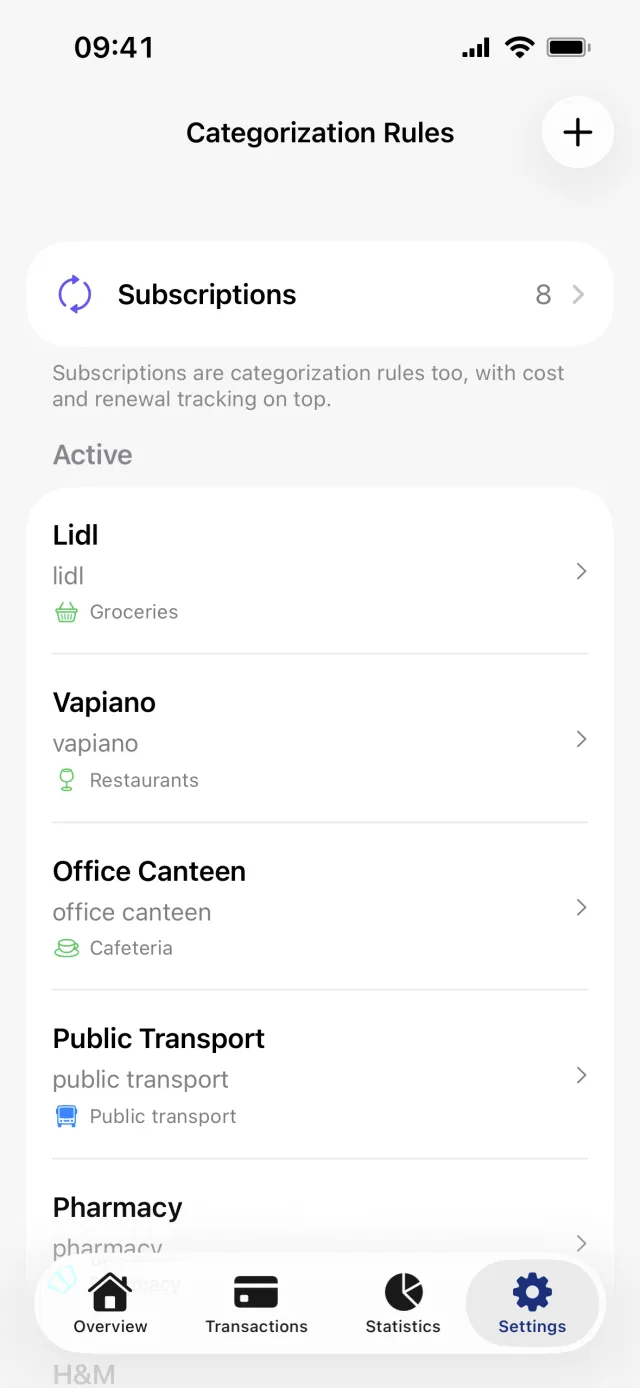
Create a rule
- Open the Settings tab and tap Categorization Rules under Finance.
- Tap the plus and choose Add manually. With no rules yet, use the button on the empty screen instead.
- Under Match keyword, type the part of the text that repeats. The shop name on its own works better than the whole line.
- Under Auto-categorize, tap Category and pick one. You can add Tags too, and give the rule a Name.
- Tap Save.
- If a sheet titled Apply to existing transactions? appears, every match is already ticked. Untick anything you want left alone and tap Apply.
Good to know
- A keyword needs at least three letters or numbers.
- Matching ignores capitals and punctuation and drops a trailing reference number, but it is sensitive to accents: cafe does not match CAFÉ.
- A rule only fills an empty category. It never changes one you set yourself, and it never touches reserved transactions.
- Rules run before suggestions, so a transaction a rule claims gets no suggestions at all.
- Rules apply whether or not automatic categorization is on. They are instructions, not guesses.
- A rule with tags but no category gets no Apply to existing transactions? question. Its tags only reach transactions that arrive later.
Make a rule from a transaction in front of you
- Open the transaction.
- Tap Edit in the top right.
- Tap Add categorization rule.
- Shorten the keyword, which starts out as the whole cleaned description, pick a category, and tap Save.
If a rule already covers that transaction, the same row reads Edit categorization rule and opens the rule you have rather than making a second one.
Let Penge suggest rules from your history
- Open Settings, then Categorization Rules.
- Tap the plus and choose Suggest from history. While you have no rules at all, the scan runs on its own.
- On the Rule suggestions screen, tap a row under Suggested rules.
- Check the keyword and the category, then tap Save.
- Tap Show more for another twenty suggestions, or Done to close.
Good to know
- The scan looks for shops you categorize the same way every time and that no rule or subscription covers yet.
- The percentage beside a suggestion is the share of that shop's already categorized transactions sitting in that category, over the last twelve months. It does not mean every transaction from the shop has a category.
- The scan runs on the server, so it needs a connection.
- Once you have your first rule, the scan only runs when you ask for it from the plus menu.
Turn a rule off, edit it, or delete it
- Open Settings, then Categorization Rules. Rules are split between Active and Inactive.
- Tap a rule to open Edit rule.
- Turn off Active and tap Save to park a rule without losing it.
- To remove it for good, swipe its row to the left and tap Delete. There is no confirmation.
Good to know
- Turning a rule off, or deleting it, undoes nothing. Transactions it already categorized keep their category.
- Editing the keyword on an existing rule can bring back the Apply to existing transactions? sheet when you save.
Get a full overview with Penge
Connect your bank and let the app categorize and budget automatically.
Questions about this
- How is a rule different from Categorize similar transactions?
- That sheet is a one-off tidy-up of transactions you already have. A rule is standing, and it keeps working on transactions that have not arrived yet.
- What happens when two rules match the same transaction?
- The category comes from the first match in order, with subscriptions ahead of rules and older ahead of newer. Tags from every matching rule are added together.
- Is a subscription the same thing as a rule?
- It matches the same way and categorizes the same way, with cost and renewal tracking on top. If you want the price watched as well as the category set, mark it as a subscription instead.