
Categories, rules and tags
Tags and smart tags: a second label
A category answers what a transaction was. A tag answers anything else you want to ask later: which holiday, which project, which part of the bill was really yours.
How do you tag a transaction?
On the Transactions tab, swipe the row to the left and tap Add tag, then pick a tag from the list. On a transaction you already have open, the Tags section holds the same picker. Tapping a tag the transaction already carries takes it off again.
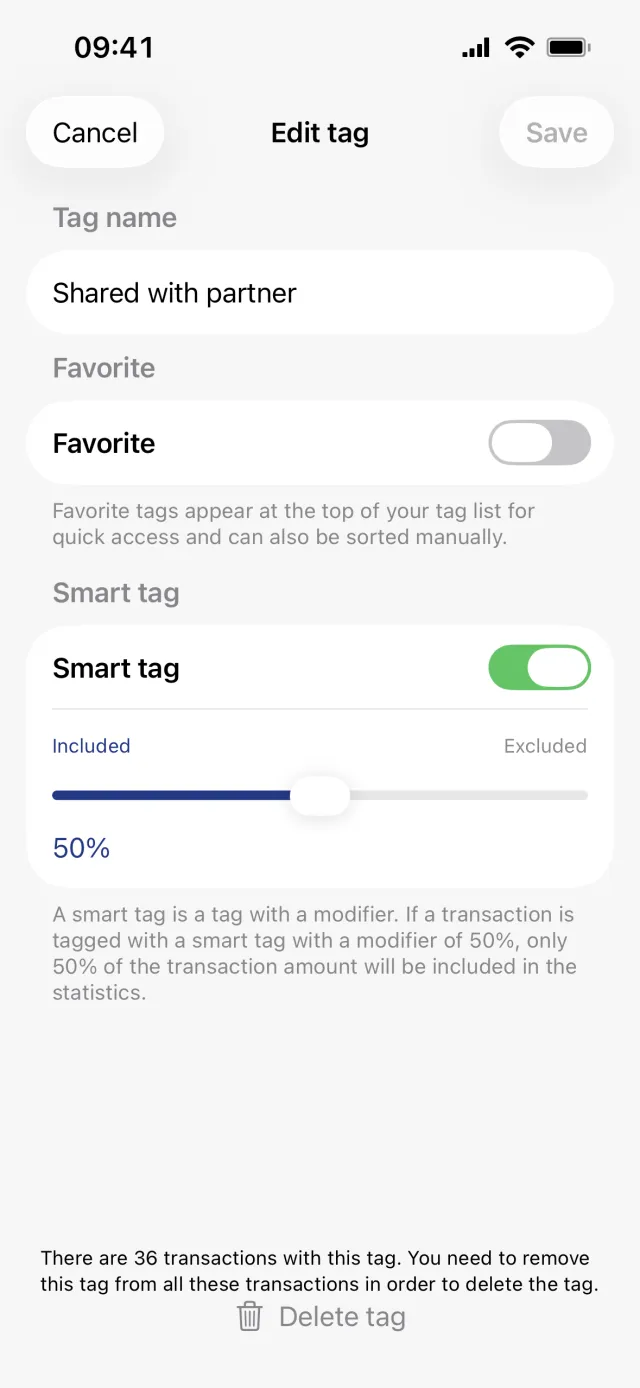
Create a tag
- Open the Settings tab and tap Tags under Finance. The screen is titled Edit tags.
- Tap the plus in the top right and choose Create a tag.
- Type a name under Name.
- Turn on Favorite to pin the tag to the top of every tag list.
- Turn on Smart tag if the tag should change how much of the amount counts, then drag the slider.
- Tap Save.
You can also make one without leaving a transaction: swipe the row to the left, tap Add tag, then open the menu in the top right of the tag list and choose Create a tag.
What a smart tag with a share does
A smart tag carries a percentage, and that percentage is the share of the amount that reaches your statistics and budgets. Put half of a shared restaurant bill on a 50 per cent tag and only half of it counts. The transaction list keeps showing the full amount, because the tag changes the maths, not the payment.
Good to know
- The captions read Included on the left and Excluded on the right, but the number under the slider is what counts, and dragging right raises it. At 100 per cent the whole amount counts.
- Two smart tags on the same transaction multiply. 50 per cent and 50 per cent leaves 25 per cent.
- The Statistics tab has an Apply modifiers toggle that switches smart tags off for the charts entirely.
- If a whole account is only partly yours, give the account its own share instead. That saves tagging every transaction on it.
Tag several transactions at once
- Press and hold a transaction row for about half a second.
- Tap the other rows you want to include.
- Tap Tag in the bar along the bottom.
- On the Tag Selected screen, tap a tag.
Good to know
- A tick means every selected transaction already carries that tag. Tapping it takes the tag off all of them.
- The selection stays alive afterwards, so you can add a second tag straight away. The list itself closes after each tap unless you turn off Close tag list after adding tag under Settings, then Preferences.
- Tagging needs a connection, and reserved transactions cannot be tagged.
Rename, reorder and delete tags
- Open Settings, then Tags.
- Tap a tag to open Edit tag. Rename it, change Favorite, or turn Smart tag on or off, then tap Save.
- Drag rows in the Favorites section to reorder them.
- To delete, open the tag, tap Delete tag at the bottom and confirm with Confirm deletion.
Good to know
- A tag cannot be deleted while any transaction still carries it. The button stays grey and the sheet says how many transactions are in the way.
- Only favourites can be reordered. Every other tag is ordered by when you last used it, most recent first.
- Renaming a tag renames it on every transaction. There is no per-transaction tag text.
- Tags have no colours and no nesting. They are one flat list.
Get a full overview with Penge
Connect your bank and let the app categorize and budget automatically.
Questions about this
- Can I search the transaction list for a tag name?
- No. Search covers the description, the note and the amount. To pull up everything with one tag, use the Tag chip in the filter row above the list, which can also exclude a tag.
- Does a smart tag change the amount my bank shows?
- No. Nothing Penge does writes back to your bank, and the transaction list keeps showing the real amount. A smart tag only changes what your statistics and budgets count.
- What is the difference between a tag and a category?
- A transaction has one category, and categories drive your statistics and budgets. Tags are free labels, as many as you like per transaction, for cutting the same transactions a different way.