
Budgets, statistics and subscriptions
Create a budget and see what is left
A budget in Penge is a spending limit for a set of categories over a week, a month or a year. Once it exists it sits as a card on Overview and tells you how much of that limit is still there.
Where do budgets live?
Budgets sit on the Overview tab, in a horizontal row of cards. There is no Budgets tab and no separate list. Swipe the row sideways to see them all, tap a card to open that budget, and tap the New budget tile at the end of the row to make one.
Create a budget step by step
- Open the Overview tab and scroll to the row of budget cards.
- Tap New budget. If this is your first one, Penge offers a ready-made monthly Food and drinks budget with an amount already filled in. Tap Use this budget to take it, or Set one up myself instead to build your own.
- On Add budget, tap Add categories, tap the categories this budget should cover, then tap Done. A transaction counts towards the budget only when its category is on that list.
- Under I want to use less than, type the limit for one period.
- Under Every, choose Week, Month or Year. Month is already selected.
- Tap Next.
- On Save your budget, set the Name, pick a Color, and tap Select icon to pick an icon or an emoji.
- Tap Save.
Good to know
- Nothing is stored until you tap Save on the second page. Closing the sheet before that throws the whole draft away.
- Next and Save are greyed out with no network connection, so a budget cannot be created, edited or deleted offline.
- Moving to the second page always replaces the icon with the first category's icon. On a budget with exactly one category it replaces the name too, so a name of your own does not survive an edit there.
- The amount on the first-budget screen is a fixed starting figure per currency, not a reading of your own spending, and the categories on that screen cannot be changed.
- The limit is a plain number in your primary currency. Changing your primary currency later does not convert it.
- The category picker inside this flow cannot create a new category. Make it first from the Transactions or Settings category screens.
How spent and remaining are worked out
Penge takes every transaction dated inside the period whose category is on the budget, converts it into your primary currency at the rate for that transaction's own date, applies any tag and account modifiers, and adds it up. Remaining is the limit minus that figure.
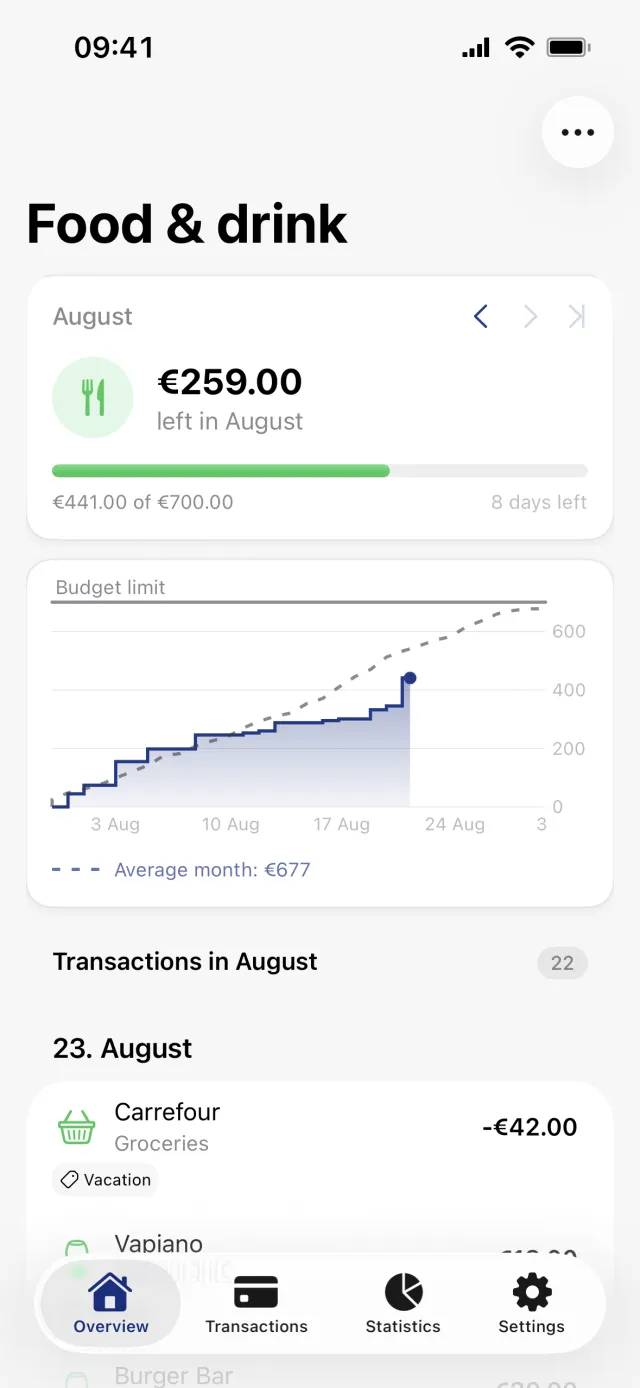
- The big number is what is left, not what you have spent. The amount spent appears in the small caption under the progress bar, as spent of limit.
- Income and refunds in a budgeted category pull the spent figure down, so a refund can push a budget back under its limit.
- Transactions with no category never count, and neither do reserved ones.
- A cost spread over several months counts at its full amount in the month it was paid. Budgets do not use the monthly share that statistics use.
- The bar is spending against the limit, and the caption beside it counts down what is left of the period. Under the card a chart plots the same spending as it adds up, with a grey Budget limit line across it and a dashed average line once there is enough history to draw one.
- Over the limit, the Overview card shows a negative number and still reads left in the period. Only the details screen turns the amount red and says over budget.
- Nothing rolls over. Money left at the end of a period does not move into the next one, and overspending does not shrink it.
Edit or delete a budget
- Open the budget from its card on Overview.
- Tap the ellipsis in the top right.
- Choose Edit to reopen the same two-page sheet, or Delete and then confirm.
Good to know
- Deleting a budget removes only the budget. Transactions, categories and category assignments stay exactly as they were, and there is no undo.
- Past periods are always measured against the current limit, because old limits are not stored. Raising the amount rewrites how every earlier period reads.
Get a full overview with Penge
Connect your bank and let the app categorize and budget automatically.
Questions about this
- Can I look at an earlier period?
- Yes, when there is one to look at. A row of chevrons above the summary steps back through earlier periods and jumps forward to the current one. The row stays hidden until the budget's categories hold a transaction older than the period you are on.
- Does Penge warn me when I go over budget?
- No. There is no push notification, badge or in-app alert for a budget. The card and the details screen show the figure, and that is the only signal you get.
- Can one category be in two budgets?
- Yes. There is no limit on how many budgets a category belongs to, and its spending counts in full towards each of them.
- Why is only half of a purchase in my budget?
- Probably a modifier. A percentage on a bank account or on a smart tag multiplies the amount before the budget counts it. There is more in [your share of a joint account](/help/your-share-of-a-joint-account).