
Budgets, statistics and subscriptions
Count only your share of a joint account
When an account or a purchase is shared, counting all of it makes your figures read high. A statistics modifier is a percentage that decides how much of each amount Penge counts.
How do you count only your share?
Put a statistics modifier on the account. Open Settings, tap Banks and accounts, the bank, then the account, tap Edit and choose Add statistics modifier. That sets fifty percent straight away and opens the Statistics modifier row, so the slider is already there. Move it to the share you actually pay.
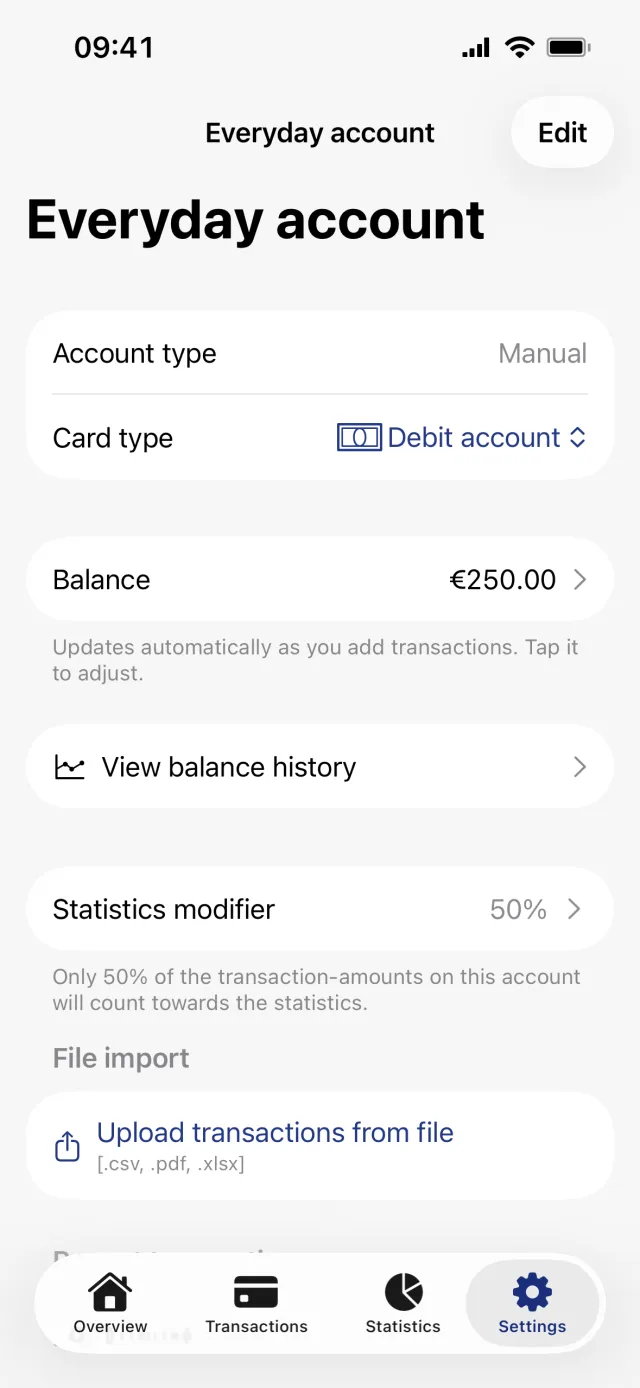
Set the share on an account
- Open the Settings tab and tap Banks and accounts.
- Tap the bank, then the account inside it.
- Tap Edit in the top right, then Add statistics modifier. The account drops to fifty percent immediately, with no question first.
- Back on the account screen the Statistics modifier row is already open, with the slider under it.
- Drag the slider until the percentage under it is your share, then stay on the screen for a moment.
- To undo it, tap Delete modifier under the slider.
Good to know
- The slider is labelled Included at the left end and Excluded at the right, but the number under it is the included share, and dragging right raises it.
- The change is saved about three seconds after you let go. Leaving the screen straight away can lose it.
- Adding, changing and removing a modifier all need an internet connection.
- A modifier does not touch the account's real balance and changes nothing at your bank. It only changes what statistics, budgets and widgets count.
- It applies to every transaction on the account, old and new.
- This is bookkeeping inside your own copy of the account. It gives nobody else access to your Penge account, and it does not show you anyone else's accounts.
Set the share on a tag instead
When only some purchases are shared, a smart tag fits better. A tag can carry its own percentage, and every transaction you give that tag counts at that share.
- Open the Settings tab and tap Tags.
- Tap the tag you want, or make a new one from the toolbar menu.
- Turn on the Smart tag switch.
- Drag the slider between Included and Excluded to the share you pay.
- Tap Save.
Good to know
- A new smart tag starts at a hundred percent, so turning the switch on and saving without moving the slider changes nothing.
- Turning the switch off and saving removes the percentage. There is no separate delete for it.
- Percentages multiply rather than add. Two fifty percent tags on one transaction leave twenty-five percent, and a fifty percent account cuts that to twelve and a half.
Where the share shows up
- Statistics uses the modified amounts while Apply modifiers is on in the settings popover, which it is by default. Turning that off shows the full amounts again on that screen only.
- Budgets, widgets, A typical month and the Overview summary cards always use the modified amounts, with no switch to turn them off.
- An account with a modifier gets a two-person icon in the account list and a second line under its balance showing your share.
- A smart tag shows its percentage in brackets after the name in tag lists and on transactions.
There is more on what the modifiers change in how to read your statistics.
Get a full overview with Penge
Connect your bank and let the app categorize and budget automatically.
Questions about this
- Does this share the account with the other person?
- No. Penge has no way to give another person access to your accounts, and no way to show you theirs. A modifier only changes how your own copy of the numbers is counted.
- Does the balance change?
- No. The account keeps the balance the bank reports. Only aggregated figures such as statistics, budgets and widgets use the reduced amounts.
- Can I use a tag and an account modifier together?
- Yes. They multiply. A fifty percent account and a fifty percent smart tag on the same transaction leave twenty-five percent counted.
- My slider change did not stick. Why?
- Either you left the screen within about three seconds of letting go, or the device had no connection. The save is silent in both cases, so check the percentage again when you come back.