
Categories, rules and tags
Build your own categories and groups
The categories you start with are a copy made for your account, so changing them costs nothing. You can rename them, give them different icons, move them between groups, add your own, and park the ones you never want in a chart.
Where do you edit your categories?
Open the Settings tab and tap Categories under Finance. The screen that opens is titled Edit categories. Everything lives there: the plus menu creates a category or a group, tapping a row opens it for editing, and the drag handles change the order inside a group.
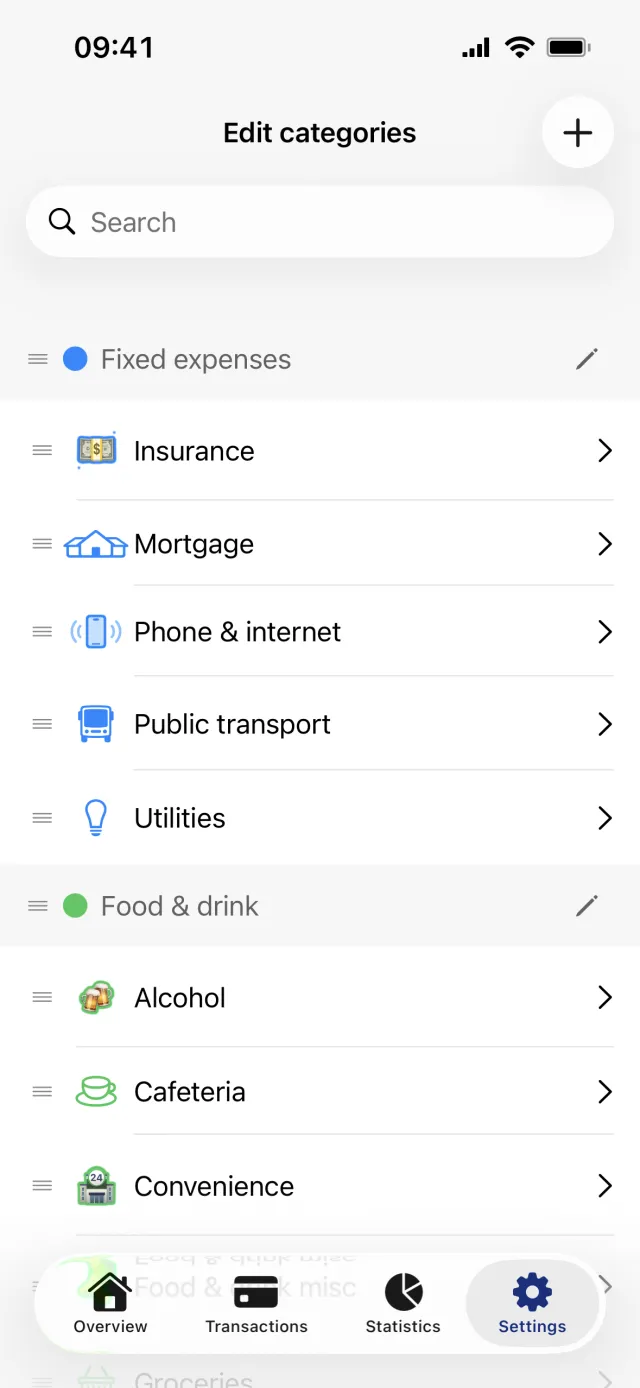
Create a category
- Open Settings, then Categories.
- Tap the plus in the top right and choose Create a category.
- Type a name under Name.
- Tap the icon beside Select icon, then pick a symbol under Icon or switch to Emoji.
- Tap Select group and choose the group it belongs in.
- Tap Save.
Good to know
- A group is required. The picker opens on No group, and Save stays off until you choose a real one.
- Names have to be unique across all your categories, whichever group they sit in.
Rename a category, change its icon, or move it
- Tap the category row on the Edit categories screen.
- Change the text under Category name, tap the icon beside Select icon, or use Select group to move it.
- Tap Save. Save stays off until something has actually changed.
One category is locked: Internal transfer, which Penge uses to pair transfers between your own accounts. It cannot be moved to another group, and it has no delete button.
Delete a category
- Open the category and tap the red Delete category at the bottom.
- With no transactions attached, tap Confirm deletion and you are done.
- With transactions attached, a sheet asks where they should go. Tap Choose category and pick a replacement, or pick Uncategorized at the top of that list.
- Tap the red button at the bottom, then Confirm deletion.
Good to know
- No transaction is ever deleted along with a category. Everything attached is moved first, and the count in that sheet covers booked transactions only, so it can be smaller than the number that moves.
Create and reorder groups
- Tap the plus and choose Create a group.
- Type a name under Name and pick one of the colours under Color.
- Tap Save.
Good to know
- Groups have a colour but no icon, and the colour comes from a fixed set of eleven.
- Tap a group header to change its name or colour. Press and hold it for about half a second and the Reorder category groups sheet opens instead. That press is the only way to reorder groups, and group order is saved when you tap Done.
- Dragging a category moves it within its own group only, and that order saves the moment you let go.
- A group can only be deleted once it holds no categories.
What Excluded from statistics does
Two of the groups you start with are left out of your statistics: Excluded from statistics, which holds the locked Internal transfer category, and Saving. Anything filed in either stops counting in the charts, while the transactions stay in the list with their real amounts.
You can move your own categories in there and they stop counting too. What you cannot do is mark a group of your own as excluded, because the app has no setting for it. To see the excluded ones anyway, turn on Show excluded categories on the Statistics tab.
Get a full overview with Penge
Connect your bank and let the app categorize and budget automatically.
Questions about this
- Can I drag a category into a different group?
- No. Dragging reorders a category inside its own group. Moving it elsewhere is done with Select group in the category's edit sheet.
- Do my edits affect other people using Penge?
- No. The categories on your account are a copy made when you signed up. Renaming or deleting one only changes your account.
- Why can I not delete this group?
- Either it still holds categories, in which case move or delete them first, or it holds the locked Internal transfer category, in which case the delete button is not shown at all.