
Your bank will not connect: upload the statement as a file instead

Co-founder of Penge · Published 13 September 2026 · 6 min read
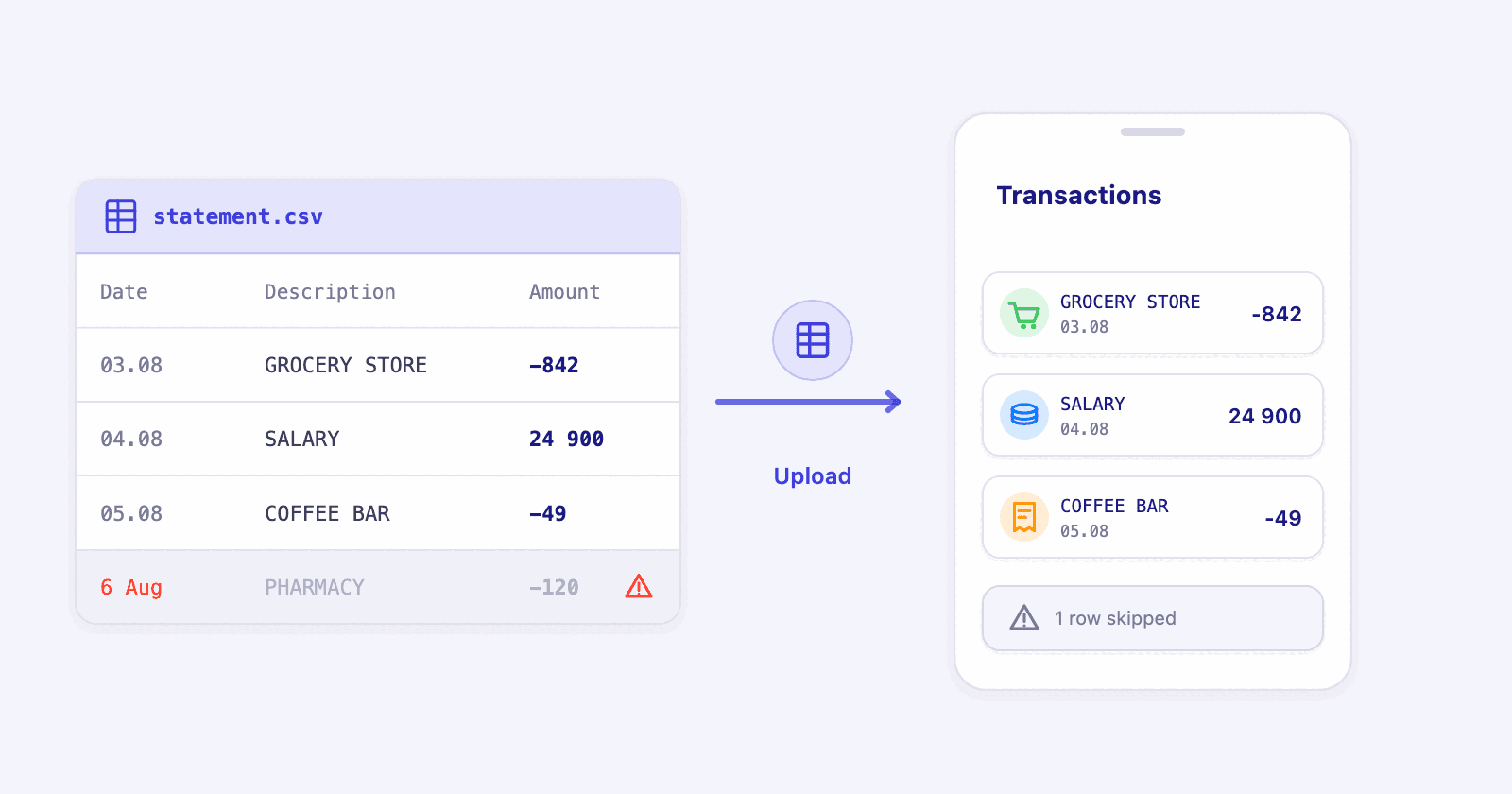
Open banking reaches a lot of banks. It does not reach all of them. If yours was missing when you searched for it, your overview has a hole in it, and a budget with a hole in it is one you stop opening. A statement file is the way in.
Key takeaways
- Almost every bank can export a statement, including the ones open banking cannot reach. Penge reads PDF, CSV and Excel files.
- CSV and Excel are the better choice. Penge reads them itself and shows you which column it took for the date, the description and the amount, so you can correct it.
- A PDF is read by ChatGPT, which you are asked about first. It can leave a row out without saying so, so compare the count in the preview with your statement.
- One row your bank wrote in a format Penge cannot read no longer stops the import. The rest go in, and the skipped rows are listed so you can see what is missing.
- Imported transactions land in the same list, statistics and budgets as bank-connected ones, in whichever account you send them to.
How do you get your bank into a budget app when it will not connect?
Export a statement from your online bank, then upload the file. In Penge, open Settings, then File import, tap the plus and pick a .csv, .xlsx or .pdf file. A preview shows what was read. Choose the account, check the columns, and Save puts the transactions in your overview.
Penge connects to more than 2300 banks in over 30 countries, and that list is still not everything. Small local banks, some card issuers and a few account types are outside it. The way you find out is the same for everyone: you search for your bank when you add an account, and it is not there.
That is the point where most people close the app. It is worth not doing, because the file route gets you the same numbers. It is a snapshot rather than a live connection, so nothing arrives on its own afterwards and you repeat the export when you want the next month. In return you get a month that adds up.
Where do you find the statement in your own online bank?
Open the account itself rather than the front page, set the period you want, and look for a download or export button near the list of transactions. Most banks offer both a PDF made for printing and a data file. Take the data file. It is usually in the web bank rather than the phone app.
Every bank names it differently, so it helps to know the words. The statement is kontoutskrift in Norwegian, kontoutdrag in Swedish and kontoudskrift in Danish, and the button next to it says some version of export or download. Here is what three Nordic banks say in their own guides, one from each country:
| Bank | The route it describes | What you get |
|---|---|---|
| Danske Bank (DK) | In the mobile bank: the account, the three dots, then Eksporter kontobevægelser | A period you choose, as PDF, XLSX or CSV[1] |
| Nordea (NO) | In the online bank: the Oversikt menu, then the account, with a date range | CSV, which the bank writes as CSV (Excel)[2] |
| Handelsbanken (SE) | In the online bank: 24 months of transactions on the account | The page describes seeing and printing them, and names no file format[3] |
That third row is the useful one to know about. Several banks document only viewing and printing for private customers, with no data file anywhere. If yours is one of them, print the statement to PDF and upload that. It is the weaker route, and it is still a route.
Good to know
- Set the date range before you export. A file of the last three months is a better first import than one of the last three years, because you can check it.
- Some banks hide the export behind a menu on the account, often the same menu as printing, and sometimes behind three dots.
- Bank menus get rebuilt. If the wording above has moved, look for it around the transaction list rather than in the settings.
Which file should you export: CSV, Excel or PDF?
CSV first, Excel second, PDF last. CSV and Excel are read by Penge itself, and you can see and change which column it used for each field. A PDF is sent to ChatGPT to be read, which works but is not exact. Exactly three types are accepted: .csv, .xlsx and .pdf.
| Format | How it is read | What you should know |
|---|---|---|
| CSV | By Penge, on its own | You pick the date, description and amount column yourself. The most predictable of the three. |
| Excel (.xlsx) | By Penge, on its own | Only the first sheet is read. Old .xls workbooks are not accepted, so save it again as .xlsx. |
| By ChatGPT | You are asked before the file is sent. Rows can go missing without a warning, so count them in the preview. |
The PDF route exists because some banks offer nothing else, and it is genuinely useful when that is the case. It is not the one to reach for when you have a choice. A CSV of the same month is read by rules you can inspect, and it never quietly loses a line.
Good to know
- OFX, QIF, CAMT and .xls files are not read. If that is all your bank offers, open it in a spreadsheet and save it as .csv or .xlsx.
- One file per import. A year in twelve monthly files is twelve imports.
- Whichever format you send, the file is uploaded to Penge and kept in a private area for your account, and it turns up in your data export.
What does a clean file look like?
One header row of column names, then one row per transaction, with a date, a description and an amount. Money out should be negative. Anything above the header row, such as an account number or a date range, should be deleted, because the first row is read as the column names.
Most bank exports already look like this and need nothing done to them. When one does not, a minute in a spreadsheet fixes it. Here is what a file Penge reads without complaint looks like:
| Date | Description | Amount |
|---|---|---|
| 03.08.2026 | GROCERY STORE OSLO | -842.00 |
| 04.08.2026 | SALARY | 24900.00 |
| 05.08.2026 | COFFEE BAR | -49.00 |
| 06.08.2026 | PHARMACY | -120.00 |
- Dates written in numbers. Penge tries a long list of numeric formats and keeps the one that fits most rows, so 03.08.2026, 03/08/26 and 2026-08-03 are all fine. A date written as 6 Aug is not read.
- One amount column, with a minus sign on the money that left. Both 1 234,56 and 1,234.56 are understood, so you do not need to change the separators.
- Two columns instead, one for money in and one for money out, also works. Penge merges them into one and makes the outgoing side negative.
- A description column with actual text in it. The shop name, the payee, the message on the payment: whatever your bank writes there.
- A note column is optional. Pick one in the preview, or set it to None.
Good to know
- A column is only offered as the amount if every cell in it looks like a number, so a stray word in one row takes the whole column out of the running.
- A currency column is ignored. Every imported row is recorded in your primary currency, and there is no currency picker.
- If the signs come out backwards, the preview has an Invert amounts switch that flips every row at once.
What happens to a row Penge cannot read?
It is left out, and the rest of the file still imports. The preview says how many rows were skipped and which column caused it, and Show skipped rows lists them with whatever the other columns held, so you can see exactly what is missing before you save anything.
This used to be the frustrating part of any file import. One row with a blank date, one summary line at the bottom, one interest posting written differently from the rest, and the whole file bounced with nothing to tell you why. Now a bad row costs you that row, not the import.
Seeing which rows they are usually tells you what to do. If the skipped rows are a total line and a page header, ignore them and save. If they are ten real transactions that all have a date written the same odd way, close the preview, fix the column in a spreadsheet and upload again.
Good to know
- The list shows the first ten skipped rows, then says how many more there are.
- Skipped rows are read-only. You cannot rescue one from that list, so the fix is a different column choice or a tidier file.
- Rows are usually skipped one column at a time. A row with a readable date and an unreadable amount counts as skipped, and the amount column is the one to look at.
- The warning about skipped rows is shown in English whatever language the app is in.
Importing a file, step by step
- Export the statement from your bank as .csv, .xlsx or .pdf.
- In Penge, open Settings, then File import, and tap the plus in the top right. You can also start from a manual account, or from the plus button on the Transactions tab.
- Pick the file. For a PDF, a sheet headed We use ChatGPT to parse PDF files asks first.
- Under Bank account, choose where the rows should land. An account has to exist before you can import into it.
- Under Columns, check that Date, Description and Amount point at the right column. Penge guesses from the file, and tapping a row changes it.
- Read the summary: the number of transactions, the dates they span, and the income, expenses and total. Compare it with the statement in front of you.
- Tap Save.
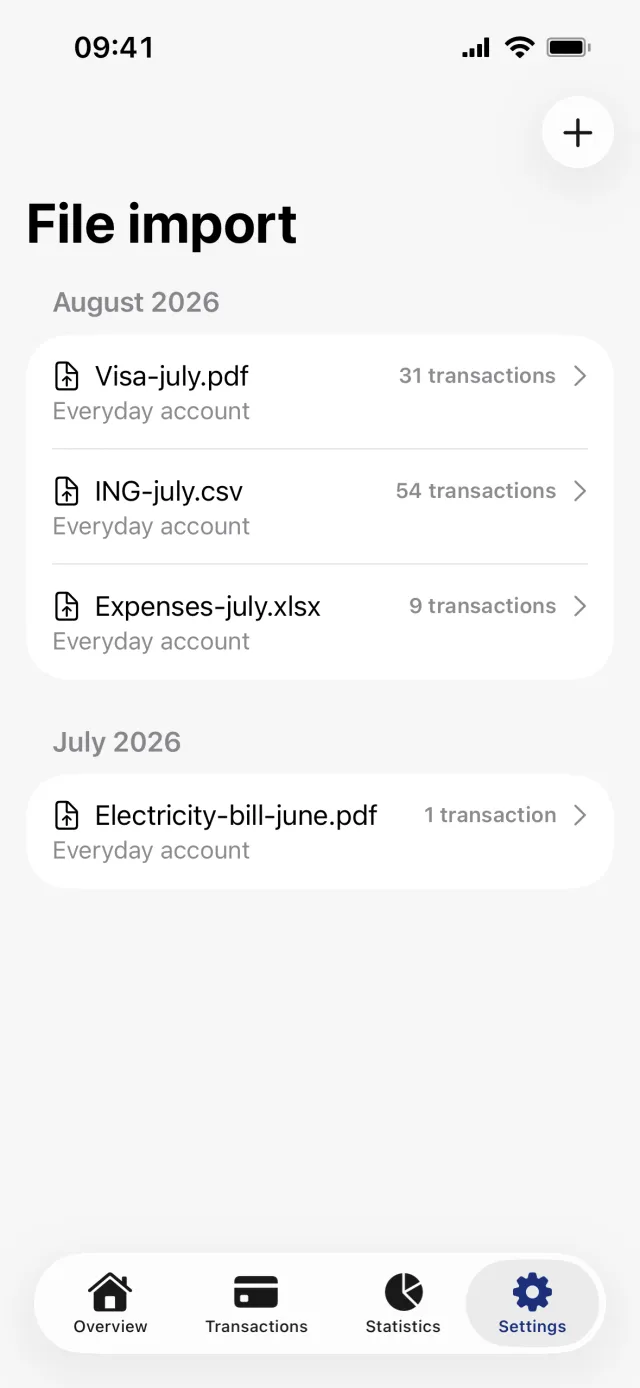
The version with every button named, including how to rename or delete an import afterwards, is in Import a PDF, CSV or Excel statement.
Do uploaded transactions behave like connected ones?
Yes. They go into the same transaction list, count in the same statistics and budgets, and can be searched, edited, tagged, split and categorized the same way. The only difference is where they came from, which you can still filter on later.
They arrive without a category and then run through the same category suggestions as everything else, so an imported month does not leave you with a screen full of uncategorized lines. If you have a rule for your electricity company, it applies to the imported rows too.
Send them to an account you created yourself rather than to a connected one. Penge will let you import into a connected account, and it warns you when you pick one, because the bank will keep sending the same transactions and nothing removes the copies.
Good to know
- Nothing is checked against what is already there. Importing the same file twice gives you every transaction twice.
- An import can be undone. Settings, File import, open it and tap Delete file, and its transactions go with it.
- You can share a statement to Penge from Files, Mail or your bank's own app. No account is preselected on that route, so choose one before you save.
Penge runs on iPhone and connects to more than 2300 banks in over 30 countries. File import is what covers the rest, so one awkward bank does not have to be the reason your overview is wrong.
Get a full overview with Penge
Connect your bank and let the app categorize and budget automatically.
Frequently asked questions
- My bank is not in the list. Can I still use a budget app?
- Yes. Export a statement from your online bank as CSV, Excel or PDF and upload the file. The transactions land in an account you pick and behave like any other transaction in the app.
- Which file format is best for importing a bank statement?
- CSV. It is read by the app itself, and you can see and change which column was taken for the date, the description and the amount. Excel works the same way. PDF is read by ChatGPT and can lose a row without telling you.
- What happens if one row in my file is wrong?
- The rest still imports. The preview counts the skipped rows, names the column that caused it, and lists the first ten so you can see what is missing before you save.
- Do I have to upload a file every month?
- For a bank that cannot be connected, yes. A file is a snapshot, not a live connection, so you repeat the export when you want the next month. Connected accounts keep updating on their own.
- Can I import a statement into an account that is already connected to the bank?
- You can, but you should not. The bank keeps sending the same transactions and nothing removes the duplicates. Import into an account you created yourself instead.