
Banks and accounts
Import a PDF, CSV or Excel statement
When a bank cannot be connected, a statement file is the way in. Penge reads PDF, CSV and Excel, shows you what it found, and lets you fix the mapping before anything is saved.
How do you import a statement?
Open a manual account, tap Upload transactions from file under File import, and pick a .pdf, .csv or .xlsx file. Penge opens a preview where you choose the account, check the columns and read the rows, then tap Save. One file per import.
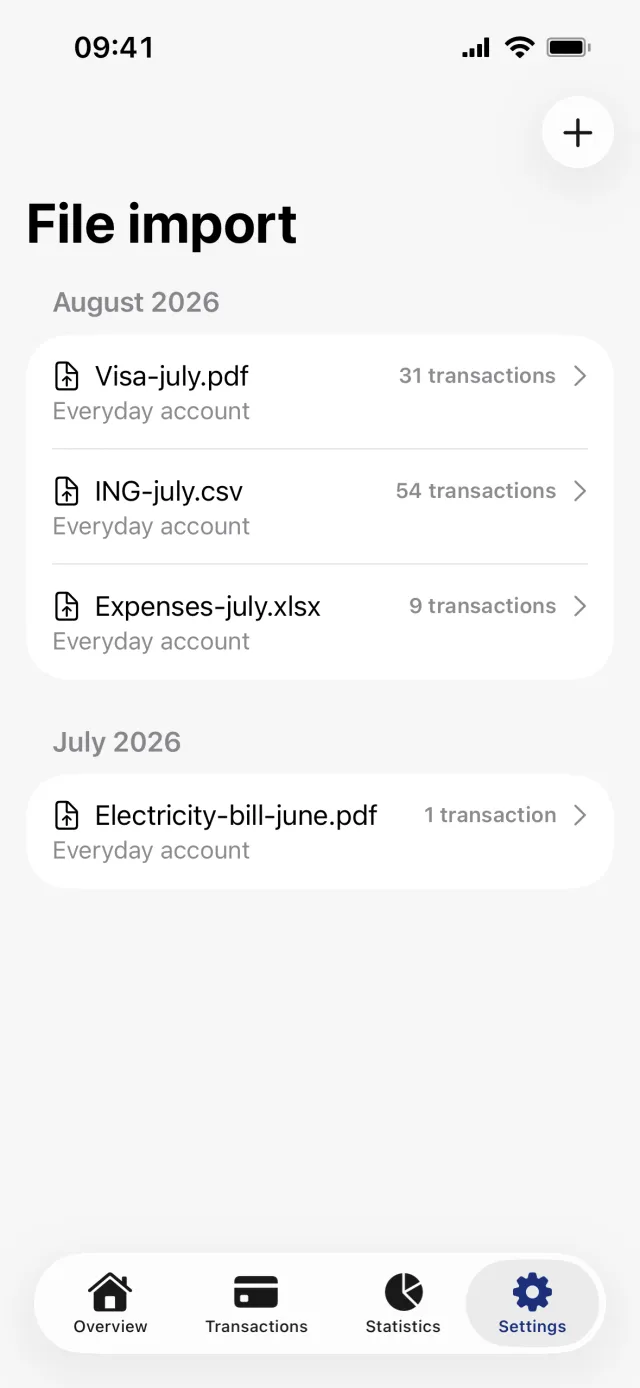
Import a file step by step
- Open the manual account, or start from Settings, File import and the plus in the top right.
- Tap Upload transactions from file. The caption below it lists what is accepted: .csv, .pdf and .xlsx.
- Pick the file.
- PDF only: a sheet headed We use ChatGPT to parse PDF files asks first. Tap Continue to send it, or go back and use a CSV or Excel file instead.
- Choose where the rows land under Bank account, the first section on the preview screen.
- CSV and Excel only: under Columns, check that Date, Description and Amount point at the right column. Note is optional and can be set to None.
- If income and expenses came out the wrong way round, turn on Invert amounts.
- Read the rows under Preview and compare the count with your statement.
- Tap Save.
Good to know
- Exactly three formats are accepted: .pdf, .csv and .xlsx. Old .xls workbooks, OFX, QIF and CAMT files are not. One file at a time.
- Only the first sheet of an Excel workbook is read.
- PDF reading is done by ChatGPT and is known to drop rows without saying so. Nothing checks the total against your statement, so count the rows in the preview yourself.
- CSV and Excel files do not go to ChatGPT, but they are still uploaded to Penge and kept in a private area for your account. They also turn up in your data export.
- Every imported row is recorded in your primary currency. There is no currency picker, so a statement in another currency arrives with the wrong label on it.
- Imported transactions are categorized like connected ones. A rule sets the category and tags outright, anything else arrives with a suggestion from your own history, and automatic categorization applies the most confident ones if you have it on.
- Dates are read by trying a list of formats and keeping the one that fits most rows, so a file that writes 03/04 can be read either way round.
- The warning about rows that will be skipped is shown in English whatever language the app is in.
- You can import into a bank-connected account. Penge warns that it may create duplicates, but it does not stop you and it does not remove them.
Review or delete a past import
- Settings, then File import, lists every import grouped by the month you uploaded it. A manual account lists its own most recent ones under the same heading.
- Tap an import to open it. The card at the top shows the transaction count, the dates they span and the net total.
- Tap the ellipsis in the top right, then Rename file. Until you rename it, an import is named after the date and time you uploaded it.
- Or tap Delete file and confirm.
Good to know
- Deleting an import deletes every transaction that came with it. That is the point of it, and it cannot be undone.
- Deleting the import does not remove the copy of the file stored on Penge's server. Deleting the account does not either.
Send a file straight from another app
Penge registers as a viewer for PDF, CSV and Excel documents, so you can share a statement to it from Files, Mail or your bank's own app. It often sits under Open in rather than among the first suggestions. No account is preselected on that route, so pick one before you save.
Your bank exports a file Penge cannot read?
Get in touch →Get a full overview with Penge
Connect your bank and let the app categorize and budget automatically.
Questions about this
- Can I import into an account that is connected to the bank?
- Yes. The account picker shows a warning that uploading manual transactions to a connected account may create duplicates, but it does not block the choice and nothing removes the duplicates afterwards.
- Does the file stay on my phone?
- No. Every file you import is uploaded to Penge and kept in a private area for your account, whether it is a PDF, a CSV or an Excel workbook. Deleting the import in the app removes the entry and its transactions, not that stored copy.
- Rows are missing after a PDF import. What now?
- Add them by hand, or delete the import and try the same statement as CSV or Excel, which is read without ChatGPT. Comparing the preview count with the statement before you save is the cheapest check.
- All my amounts have the wrong sign.
- Turn on Invert amounts on the preview screen. It flips every row at once, so expenses become negative and income positive, before anything is saved.